It was Easter Monday, and I received terrible news: the Rubik’s cube on my bedroom shelf had been scrambled.
The six faces with the QRT logos were now unrecognizable, and the cube was nothing more than a tangle of shades of blue and white.
As if that weren’t enough, the person responsible, my sister, just offered a half-apology with an ironic “Oops”.
Well, nothing a big brother isn’t used to.
Besides, I had long wanted to challenge myself by learning an algorithm to solve the Rubik’s Cube, and this was the perfect opportunity.
On top of that, I had already found this very cube completely scrambled before, and when I asked a colleague to solve it, the result looked correct at first glance, but a closer inspection revealed that some center squares were rotated incorrectly.
In short, this was the perfect chance to remove from my mind an idea that had settled there for far too long.
But, after seeing and successfully reproducing one of the simplest algorithms to solve the cube, I noticed with horror I had repeated the same mistake: the centers were rotated incorrectly.
So I began looking for a tutorial that would explain how to solve this puzzle, and without much difficulty I found the video I needed.
It is in that video that I noticed the standard notation for describing the moves to apply to the cube, and this inspired me to search for more information on the subject.
More importantly, I got the idea to write a short post presenting my findings, describing the most important algorithms, and, above all, accompanying each one with a 3D animation showing how they apply to the cube.
The only project I found online on the topic did not fully satisfy me, so I preferred to do it my way.
I expected it to be a fairly simple task.
I was very wrong.
It was a long and intricate process that led me to discover many things about the capabilities of the SVG format and to deepen concepts I previously knew only by hearsay in computer graphics, such as perspective projections, back-face culling, and the OBJ format.
In this post, I’ll try to explain, step by step, all my results, the difficulties I encountered, and the solutions I adopted.
Requirements
Let’s start by listing a set of requirements the final result must satisfy:
- the animation must be implemented entirely in SVG, without using JavaScript or other external aids;
- the animation must be smooth, with a frame rate of at least 24 fps;
- the animation must be generated automatically from a standard file that describes the 3D geometry of the object to be animated.
Approach
With the requirements defined, it’s time to roll up our sleeves and start studying all the computer graphics concepts necessary to achieve the goal.
Reading an OBJ file
The first step is to obtain a digital representation of the 3D geometry of the model we want to animate. There are many formats, some very complex and powerful, that describe not just the object’s shape but also its physical properties, like reflectivity or textures. In this case, wanting to keep the approach simple, I focused on a subset of the OBJ format’s features. It is a very simple file type that describes in plaintext the coordinates of the model’s vertices, the faces that connect them, and a number of more advanced entries for representing textures and materials, which I supported only in a very basic way, just enough to distinguish rendered results with a bit of color.
# object.obj
# 'v' indicates vertex coordinates
v 18.12325 20.862595 15.546507
v 17.791109 22.35527 14.910569
v 18.12325 20.862595 14.813557
# 'vt' indicates texture coordinates
vt 0.232721 0.243411 0
vt 0.233178 0.243579 0
vt 0.234037 0.243387 0
# 'f' indicates faces, which connect vertices
# referenced by 'v' and texture coordinates referenced by 'vt'
# In this case, the first face is composed of vertices 1, 2 and 3,
# and texture coordinates 1, 2 and 3.
# Indices start at 1.
# The syntax 'f v/vt/vn' also allows specifying normals
f 1/1 2/2 3/3To color the image, even ignoring all the complexity related to lighting, it’s necessary to introduce the concept of materials.
These are often defined in a separate .mtl file referenced within the .obj file with the usemtl directive, which tells the renderer which material to use for the following faces.
# object.obj
# 'mtllib' indicates the file containing material definitions
mtllib material.mtl
# 'usemtl' indicates the material to use for the following faces
# It can be overridden by another 'usemtl' directive
usemtl Mat# material.mtl
# 'newmtl' marks the start of material definition, followed by its name
newmtl Mat
# 'Ns' indicates shininess.
# Affects the size and intensity of specular highlights
Ns 323.999994
# 'Ka' indicates ambient color.
# Represents the amount of ambient light reflected by the object
Ka 1.000000 1.000000 1.000000
# 'Kd' indicates diffuse color.
# Represents the amount of diffuse light reflected by the object
Kd 0.048172 0.048172 0.048172
# 'Ks' indicates specular color.
# Represents the amount of specular light reflected by the object
Ks 0.500000 0.500000 0.500000
# 'Ke' indicates emissive color.
# Represents the amount of light emitted by the object
Ke 0.000000 0.000000 0.000000
# 'Ni' indicates the index of refraction.
# Represents how much the object refracts light
Ni 1.450000
# 'd' indicates transparency. From 1.0 (opaque) to 0.0 (transparent)
d 1.000000
# 'illum' indicates the lighting model to use for the material.
# Represents the combination of ambient, diffuse, and specular lighting
illum 2
# Alternatively, kd values can be provided
# via a texture, often a PNG image
# The normalized texture coordinates to use
# for each vertex are indicated by 'vt' directives
newmtl Mat2
map_Kd mat.pngParsing the input OBJ file is fairly straightforward, as it consists of reading line by line following the encountered directives and ignoring comments or unsupported features. We then obtain a representation of the model similar to this:
type Vec4 = [number, number, number, number];
type Point = {
coordinates: Vec4;
};
type Shape = {
points: Point[];
fill: Vec4;
stroke: Vec4;
};
function parseOBJ(obj: string): Shape[] {
// ...
}The result is an array of Shape, each representing a face of the model composed of an arbitrary number of points (usually 3).
Points have four-dimensional coordinates, with the fourth component of the vector used later in perspective projection and initialized to 1.
How a 3D renderer works
To achieve the goal, it’s important to understand how a 3D renderer works.
My knowledge on the subject was, and remains, rather limited, but fortunately I found a wonderful blog on the topic.
In tinyrenderer, Professor Dmitry V. Sokolov describes very clearly and with no omission all the steps necessary to implement software that renders 3D images, starting from essential primitives such as drawing a line on the screen.
This isn’t the place to rehash all the author’s explanations — doing so would be derivative and would lack the deep expertise the original author demonstrates on the subject, which I obviously cannot claim.
Moreover, the context is slightly different because SVG gives us more advanced tools than you’d have when writing a renderer from scratch in C, and the blog focuses mainly on rendering a static image, while my goal is to produce an animation, which is a natural but non-trivial extension of a basic renderer’s features.
Consequently, I’ll highlight the most important concepts I learned and that helped in my endeavor, skipping those that, while interesting, weren’t essential to my purpose, and inviting anyone interested to read the series of blog posts themselves.
There are two fundamental concepts I used in the project: back-face culling and perspective projection.
Back-face culling
Back-face culling is a technique used in 3D renderers to improve performance by avoiding rendering faces of an object that are not visible to the observer. The only difficulty is determining the orientation of a face. Fortunately, it’s easily solved: assuming the vertices of each face are ordered counterclockwise, you can compute the cross product between two of its edges to get a vector normal to the face, then compute the dot product between this vector and the vector from the camera to the face. If we’re already working in camera coordinates, the sign of the scalar product will be sufficient for us to determine which faces to render, potentially saving a lot of resources.
Perspective projection
The more complex part to understand was the chain of coordinate changes needed so that the final 2D drawing gives the illusion of representing a three-dimensional object. We start with vertex coordinates defined in an arbitrary reference system of the OBJ file, called “object space”. If we wanted to place multiple objects in the same scene, we’d need to define a reference frame that relates them, the “world space”. In this case we simplify and make the two reference frames are one and the same. Finally, we must project the vertex coordinates onto a two-dimensional plane, the “screen space”.
Anyone with some familiarity with computer graphics knows everything revolves around matrices. Thanks to them, we can obtain a compact formulation to apply all the transformations we want to our objects’ coordinates, such as rotations, scaling, and shear transforms — all linear transforms that can be represented by a matrix
For example
are the scaling and the rotation-about-the-y-axis matrices, respectively. What makes matrices particularly convenient is that they can be composed arbitrarily: applying a rotation and then a scale is equivalent to applying a matrix given by the product of the two matrices. Things get a bit more complicated when considering translations, because you’d have to add a vector to the point you want to transform. Fortunately, there’s an alternative representation that fixes this: just add a fourth coordinate to our points, initialized to 1, and use 4x4 matrices instead of 3x3, yielding
To get back to three-dimensional coordinates, just divide the first three components by the fourth, ensuring the resulting vector always has its last component equal to 1.
What remains is to build a series of transformations to go from global coordinates to screen coordinates. Skipping most details in the blog page, it’s sufficient to know that the four main transformations are:
- Viewport: transforms normalized coordinates, typically ranging from -1 to 1, into pixel coordinates, which go from 0 to the screen dimensions and ;
- Perspective: applies the perspective projection. The reference point becomes a camera positioned on the axis with focal distance ;
- ModelView: defines vertex coordinates based on the camera’s position and orientation. The camera is characterized by three points: the
eye, the camera position; thecenter, the point the camera looks at, with coordinates ; and theupvector, which defines the camera’s vertical orientation.
We only need to compose all these transformations to obtain the final matrix to apply to the vertex coordinates.
Primitives in SVG
In the SVG context, the main primitive we’re interested in is Shape, i.e., closed figures defined by a number of vertices connected by straight segments.
These can be drawn with the <polygon> element, specifying the vertex coordinates.
<!--
Create a triangle with coordinates (-1, -0.1), (2, 4) and (0.6, 0.1),
with a red border width 0.1 and blue fill
-->
<polygon
points="-1 -.1, 2 4, .6 .1"
stroke="red"
stroke-width="0.1"
fill="blue"
></polygon>The renderer will draw the lines connecting the specified points, using the color and width provided by stroke and stroke-width, including the closing segment.
The interior of the triangle will be filled with the color chosen with the fill property.
In fact, this is all we need to draw the static 3D model.
However, if we want the object to be animated, we must use a more advanced tool: the <animate> directive, which allows us to modify SVG element properties over time, such as vertex positions or color.
<!--
Animate vertex positions from (-2, -.1), (2, 4), (0.4, 0.1)
to (-1, -0.1), (3, 2), (0.7, 0.5) over 2 seconds,
using linear interpolation.
The animation repeats indefinitely
-->
<polygon stroke="red" stroke-width="0.1" fill="blue">
<animate
attributeName="points"
dur="2s"
repeatCount="indefinite"
values="-2 -.1, 2 4, .4 .1; -1 -.1, 3 2, .7 .5"
/>
</polygon>Now we really have everything necessary to create our animation.
We only need to compute the positions of every face’s vertices for each frame and use the <animate> directive to animate the vertices over time.
We could try to be particularly frugal and optimize the number of keyframes so that linear interpolation computes all intermediate positions, although the effectiveness of this approach largely depends on the type of motion we want to achieve.
Tip
<animateTransform> and <animateMotion>, which allow animating transformations and movements of SVG elements respectively, but they are not suitable here because they don’t let us animate individual vertex positions, only global transformations of the entire element.
However, try applying this technique to any rotation, and you’ll immediately notice something is wrong.
SVG limitations
Let’s start with one of the first attempts I built.
Assuming we have an array with all Shapes composing the model, we can apply the perspective transform to each vertex and draw the faces with <polygon>, animating vertex positions with <animate>.
The problem is obvious: faces overlap incorrectly and some Shapes that should be hidden are visible.
That’s not too hard to fix.
Just apply back-face culling and reorder the Shapes by their distance from the camera, drawing the farthest first and the nearest later to get a better result.
Avoiding rendering a face that is always hidden is trivial: simply don’t draw it at all.
But how do you make a Shape vanish if it was visible in the previous frame?
A simple but functional approach is to make hidden faces “disappear” by collapsing them into a point.
In short, set all vertices of the Shape to the same position, say the origin.
The improvement is clear, but because of interpolation, faces don’t disappear instantly and you can notice the moment they move toward the origin, causing a slight flicker that becomes much more visible for faster animations or when a face must “travel” a long distance.
At the cost of increasing the final file size to avoid sacrificing animation smoothness, we can solve the problem by switching from linear interpolation to discrete interpolation by giving the calcMode attribute the value discrete.
This way each keyframe happens instantly, which also implies we must increase the number of keyframes.
There is one final problem to solve, the most insidious, and the one that made me give up during my first attempt.
SVG doesn’t support any ordering mechanism for the draw order of elements: there’s no z-index, to be clear.
Consequently, the only rule that governs what will be rendered on top of what is the order in which elements are declared in the file, a characteristic that cannot be altered without JavaScript, which is not allowed by our requirements.
This is where, thanks to a nudge from a friend and his Claude Code, I found a workable solution: the only characteristic that differentiates one Shape from another is its color, so if we want to simulate ordering, we can sort faces by their distance from the camera, then assign them to SVG polygons in that same order, updating not only positions but also their colors.
I could not have hoped for a better outcome. The trick is simple: each geometric figure teleports and changes color continuously according to the ordering computed for each frame. I suggest you use the browser’s developer tools to inspect the SVG file and see what I mean.
Considerations
The final result is certainly satisfactory and meets all the set requirements.
It should not be hard to extend it to create even more complex animations, with multiple objects and more elaborate movements, as well as further optimize file size by removing redundant keyframes — for example, those of a face outside the field of view.
Still, there are also some important limitations to keep in mind: first, because we’re rendering an entire face in a single pass, it is not possible to render images like this
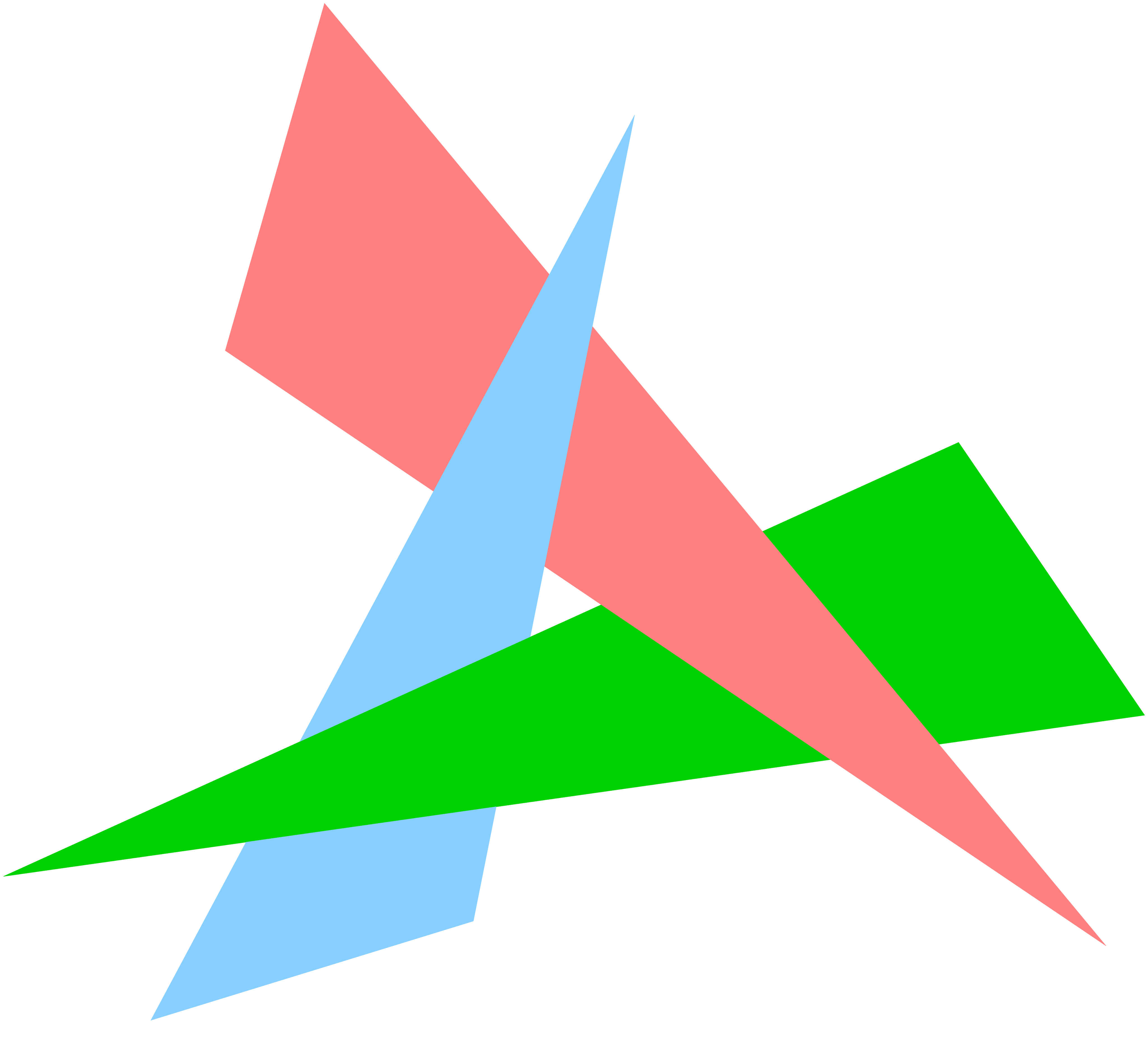
without dealing with the fact that at least one face will remain behind the others unless you split it into at least two components rendered individually. Also, there is the issue of size. As the number of polygons and keyframes increases, the produced SVG file size grows quickly and can become unmanageable, especially in a web context where lightweight, fast-to-download resources are expected.
In any case, it was a very instructive experience and something I may try to extend in the future. Being able to show a fairly complex 3D animation in a GitHub README is, after all, gratifying.
Examples
A simple desk. There seems to be some defect with some of the side surfaces, perhaps caused by not all faces having their vertices defined in the same order.
A car that first spins on itself and then moves away, with a zoom-out effect. Note how the windows only appear at a certain distance due to perspective.
A road seen from above that rotates on itself.
A pistol that rotates on itself, first one way and then the other.
The .obj files used are available online for free.